FINDING YOUR WAY AROUND ASYCUDA++
Ó UNCTAD - SITE (V1.15)
2.11
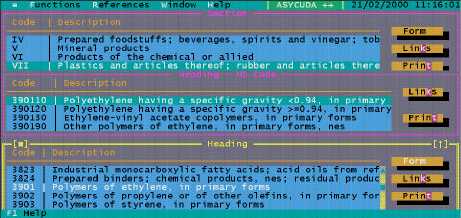
Figure 2.4 (above) is an example of windows within ASYCUDA++, where two windows are open,
with one window on top of another:
It is also possible to activate the previously opened windows in the background by <Shift> <F6>.
This will activate the window that you opened after the one that is currently active, placing the
current one in the background
The 'Window' Menu
As an alternative to using the mouse, ASYCUDA++ 'windows' can be controlled by means of the
'Window' option on the top status line of the screen. The 'Window' command options available from
the menu are:
Close
Closes the current (active) window.
Zoom
Enlarges the current window to the size of your screen. Choose this option again to reduce the
window back to its original size.
Resize/move
Activates the keys (displaying these on the bottom status line) that enable the user to move and
resize a window without using the mouse.
Tile =
If you have opened more than one window, this places the opened windows one above the other.
Fig. 2. 5 Window: Tile
Tile ||
If you have opened more than one window, this places the opened windows side by side.
Cascade
If you have opened more than one window, this option places the opened windows overlaying each
other from background to the foreground in descending size.
In the following example three windows are displayed. The top (active) screen is visible. The
screens “Tax” and “Budget” are behind “Terms of payment”.