MODCBR - CUSTOMS DECLARATIONS
Ó UNCTAD - SITE (V1.15)
3.8
Entering a code or information into a box
Type the code or information into the box, then <Enter>. When you type a code into a box and
press enter, the system will automatically display the description of the code at the bottom of the
screen. If the box contains room for the description of the code, this description is automatically
inserted in the appropriate location in the box.
Moving from box to box
To move from one box to the next box press <Enter> or <Tab>. To move from one box to the
previous box <Shift> <Tab>. It is also possible to move from box to box by moving the mouse to
place the cursor on the box required then press either the right or left button.
As a general practice, it is recommended that <Enter> be used to move from
box to box. This is because the data input into some boxes alters values in
other parts of the SAD display. <Enter> triggers the recalculation of values after
input of data in the box.
Using the List Facility for codes
If the cursor is in a box where it is mandatory to enter a code, it is possible to display a window with
the list of codes and descriptions appropriate for that box, by pressing <F8>. The user will be able
to choose a code from the window and this code is automatically inserted into the box.
If the user inputs a code in a box that does not exist, the system will automatically display a window
with the list of codes and descriptions appropriate for that box. It will also highlight the code that is
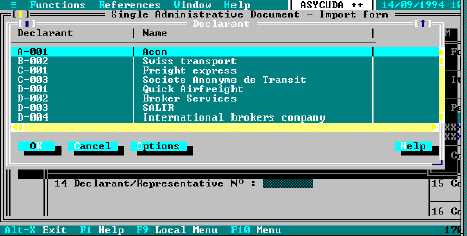
most similar to the one that the user keyed in. In the example Declaration screen below, (Trade
operator's quadrant), the <F8> function is used to display a list of recognised Declarant Code
numbers:
Fig. 3.1 MODCBR: Function: Declaration: Creation: F8 - Declarant field.
Local Menus
Many screens or windows within MODCBR give the user access to 'Local Menus' which provide a
further range of actions or options that are unique to the function being carried out.
If the 'Local Menu' option is available, (i.e. if the words ‘Local Menu’ on the status line are not grey),
then the Local Menu can be activated by <F9> or by clicking a mouse button on ‘Local Menu’ on
the bottom status line. A shortcut to activating the local menu is by a right mouse button click
anywhere in the main screen area.