MODSYSCF - CUSTOMS OFFICE CONFIGURATION
Ó UNCTAD - SITE (V1.15)
9.16
Configuration Transfer
This menu option is used to transfer the configuration that you have created on your Client
PC to the server. This is the reverse of the normal replication process that updates your
configuration files from the server files. This is essential to allow the national configuration to
be updated.
Transfer of the configuration will be refused if other users are logged in to your
ASYCUDA network. All other users must disconnect from the server before the
configuration can be transferred.
After requesting this option you will be asked for your name and password to log on to the
server. Acceptance at the screen displayed after you log on will cause your configuration file
to be transferred to the server.
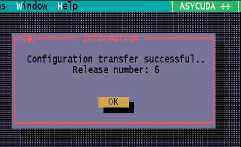
You will receive a ‘reply’ in the form of an information message, which will say:
After the configuration is transferred, the ASYCUDA engine on the server must be stopped
and then restarted. After the restart the updated configuration will be transferred to all users
when they next connect to the server by logging in.
If Your ASYCUDA++ network requires configuration for more than one office on
the one server, see also the previous explanation on Office Configuration.
Configuration Print-out
The Functions menu option, ‘Configuration Printout’, gives the user an opportunity to see the
details of the current system/office configuration.
Configuration details may be directed to the local printer, or saved to a text file for on-screen
viewing. If ‘Text file’ is chosen, the user is asked to give a file name and ‘OK’. The text file is then
displayed on screen and can be printed from the Local menu.
The saved version can be viewed from within ASYCUDA++ by using the ‘Text Browser’ option
under the ‘Tools’ menu.
A similar ‘Configuration printout’ option exists in MODCHQCF, for viewing
national configuration options set up from within that module.