FINDING YOUR WAY AROUND ASYCUDA++
Ó UNCTAD - SITE (V1.15)
2.10
Pressing the <Enter> key will confirm the choice within a window.
·
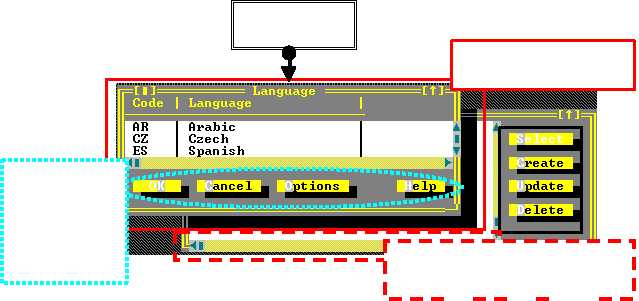
Cancel - To close the window.
·
Options - For codes, such as country codes. Allows the user to view the information and
v Sort in alphabetical order by code (model) or by description. Place the cursor by moving the
mouse between the brackets to the left of your choice (model/description) and press the right
or left mouse button.
v Focus. Type a specific description or code to search within the records.
v Working date. To view a Commodity Code or Currency Rate etc at a certain date.
v Scope. To search between a range of codes and descriptions.
·
Form - The composition of the code, i.e. description etc.
·
Links - Links of a code with any other codes.
·
Print: - Print the list of codes and descriptions.
Choosing an item or code within a window.
Move the mouse to place the cursor on the item or code, then press either the left or right button.
The code or item will be highlighted. Confirm your choice by moving the mouse to place the cursor
to the ‘OK’ box, then press either the left or right mouse button or move to the item or code of your
choice with the down arrow key then press <Enter>.
Opening more than one window.
It is possible to open more than one window. The latest window opened will be placed over any
previous window(s). Any previous windows will remain in the background in an inactive state. In
order to activate a window in the background, move the current window to a position which will
enable you to place the cursor using the mouse on the top line of the window in the background,
then press the right or left button.
Select
OK
C
O
H
Language
Fig. 2. 4. All Modules : º : Options: Language.
The title of the
window or screen
The top window is called
the 'active window'
‘Scroll Bars’ - with directional arrows
3g4 are used to ‘scroll’ (move) the
window up or down or across the screen
'Buttons' - like
“OK”, “Cancel”
and “Select”,
“Create” are
used to select
options within a
window