FINDING YOUR WAY AROUND ASYCUDA++
Ó UNCTAD - SITE (V1.15)
2.17
·
Highlight the text that you want to copy. This can be done with the mouse by placing the
mouse at the start position, clicking and holding the left mouse button, moving the mouse to the
end position and releasing the button.
·
<Ctrl> <Ins> to copy the selected block of text to the clipboard.
·
Position the cursor where you want to place the text and <Shift> <Insert> to paste the text
from the clipboard.
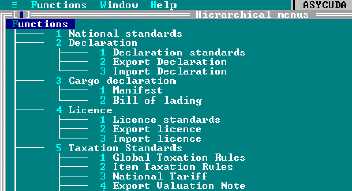
Hierarchical Menus
Displays the menu structure. This option may also be accessed directly by <Ctrl> <M>.
This menu layout can also be selected as the default format on system start up - see ‘Options:
Environment: Startup’. See also Appendix C for a full list of Hierarchical Menus.
Options (User Preferences)
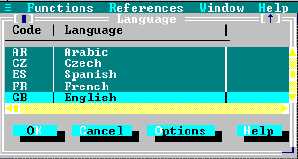
Languages
Allows the user to select the language he wishes to work in.
K
C
O
H
Fig. 2.11 All Modules: Options: Language.
Normally your ASYCUDA++ system will have only your national language installed. If you have
more than one national language, you may have more than one language installed, and from this
screen you will have the choice of switching the display text from one language to another.
The language of ASYCUDA++ as supplied by UNCTAD is English. It a task of
the Project Implementation team to arrange any necessary translation into
National language(s) and to have procedures in place for any translation of
subsequent system updates. Note that even in countries that have English as
the national language, some “translation” may be needed, e.g. in changing
certain words or descriptions to align the ASYCUDA++ screen and printed
forms with National Customs terminology. See the Technical Documentation for
details on the ASYCUDA++ utility programs used for translation.
Fig. 2.10 Example of
'Functions' sub-menu
using the hierarchical
display option