FINDING YOUR WAY AROUND ASYCUDA++
Ó UNCTAD - SITE (V1.15)
2.7
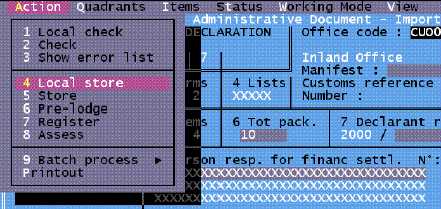
Fig. 2.1 MODCBR: Functions: Declaration: Creation: Local Menu: Action
For an explanation of 'Local Menu' options, see the descriptions under the
individual functions within the Modules.
Using the Interface
Commands are given and screens are displayed by using the keyboard or the mouse.
Using the Mouse
Move the mouse to place the cursor onto the required option on the top or bottom status line, then
press either the right or left button. A menu will appear below the option selected from the top
status line. Again move the mouse to place the cursor on the option required on this menu, then
press either the right or left button. To exit a menu move the mouse to place the cursor outside the
menu, then press the right or left button.
Using the keys
Hold the <Alt> key down, then press the first letter (i.e. the highlighted letter) of the option required
of the top status line or press <spacebar> to select the option. The option selected will be
highlighted automatically and a menu will appear below the option. Move to the option required
from the menu with the down arrow key or press the number on the left of the option.
Press <F10> to access the options on the top status line. One of the options will be highlighted.
When you have accessed one of the options of the top status line, move to the other options on the
status line with the left or right arrow. Press <Enter> and a menu will appear below the option. To
exit menus press the <Esc> key.
Note: It is possible to combine the use of the mouse and keys. See Hotkeys for full
details.
Pull down Menus
Options on the pull down menus followed by: -
4
means:
this option is followed by a sub-menu.
(nothing)
this option is followed by a window.
. . . .
this option is followed by a window with a list of choices
or information.
Keys (eg. Alt – M)
this option may also be selected by pressing the keys,
instead of using the mouse.