FINDING YOUR WAY AROUND ASYCUDA++
Ó UNCTAD - SITE (V1.15)
2.8
.
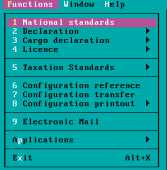
This menu has sub-menus for options 2, 3, 4, 5, and 8 but a window follows options 1, 6, 7, 9 & p.
Note: If you require to return to a previous menu, move the mouse to place the
cursor on the previous menu, then hold either the left or right button of the
mouse down, until the current menu disappears. Still holding the button down
place the cursor by moving the mouse on the option required, then release the
button to choose this option.
Windows
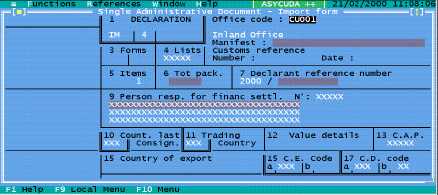
Below is an ASYCUDA++ window, second screen under menu option 'Declaration', 'Creation'.
Fig. 2.3. MODCBR: Functions: Declaration: Create.
Moving the window on the screen.
Move the mouse to place the cursor over the double line border on the top of the window. Hold
down the left or right button, the border will become a single line, and move the window by moving
the mouse. Release the button once you have moved the window to the desired position. It is also
possible to move a window by holding <Alt> <F6> . The bottom status line then displays the keys
that move the window and these are as follows:
< ¬ >
Moves the window to the left.
< ® >
Moves the window to the right.
< - >
Moves the window up.
< ¯ >
Moves the window down.
<ENTER>
exits the user from this facility.
<Esc>
exits the user from this facility and cancels the resizing (i.e. returns the window to
original size).
Fig. 2.2 MODCHQCF,
‘Functions’ menu