MODACC - ACCOUNTING
Ó UNCTAD – SITE (V1.15)
4.23
Opening or modifying a Pre-Payment Account
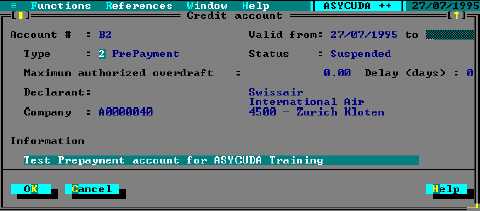
Select ‘Open’ (new account) or ‘Modify’ (existing account) to open the form display for credit and
Pre-Payment accounts.
To modify an existing ‘active’ account , the account status must be set to
‘suspended’. Use the ‘Activate’ and ‘Suspend’ controls within the Credit
account window to switch the account status.
Fig. 4.10 Modacc: Functions: Account Management: Modify
To set up a new Pre-Payment account
The procedure for setting up a new Pre-Payment account is the same as that for credit accounts.
See To set up a new credit account.
Activating the Pre-Payment Account
Accounts are activated using the controls within the Credit account window. See the example
screen in the previous topic – ‘Establishing a Pre-Payment Account’.
This is done through menu options ‘Functions: Account Management’ and requires server login.
The controls ‘Suspend’ and ‘Activate’ toggle the status of an account.
Account Secret Code
To debit a Pre-Payment requires the account holder to enter a secret code at the time of making
the declaration. The account holder (declarant or company) is issued with a secret code that is
used together with the account code. This helps in confirming that a person using a Pre-Payment
account is authorised.
The procedure for allocating a secret code is the same as described for Credit Accounts.
Payments in - Crediting a Pre-Payment Account
For a declarant to use a Pre-Payment account, first a sufficient amount of cash must be paid in.
Cash for Pre-Payment accounts is paid into the ASYCUDA accounting system through the menu
option ‘Functions’, ‘Payments in’, Crediting account’. The layout of the window (and the receipt)
is as follows: